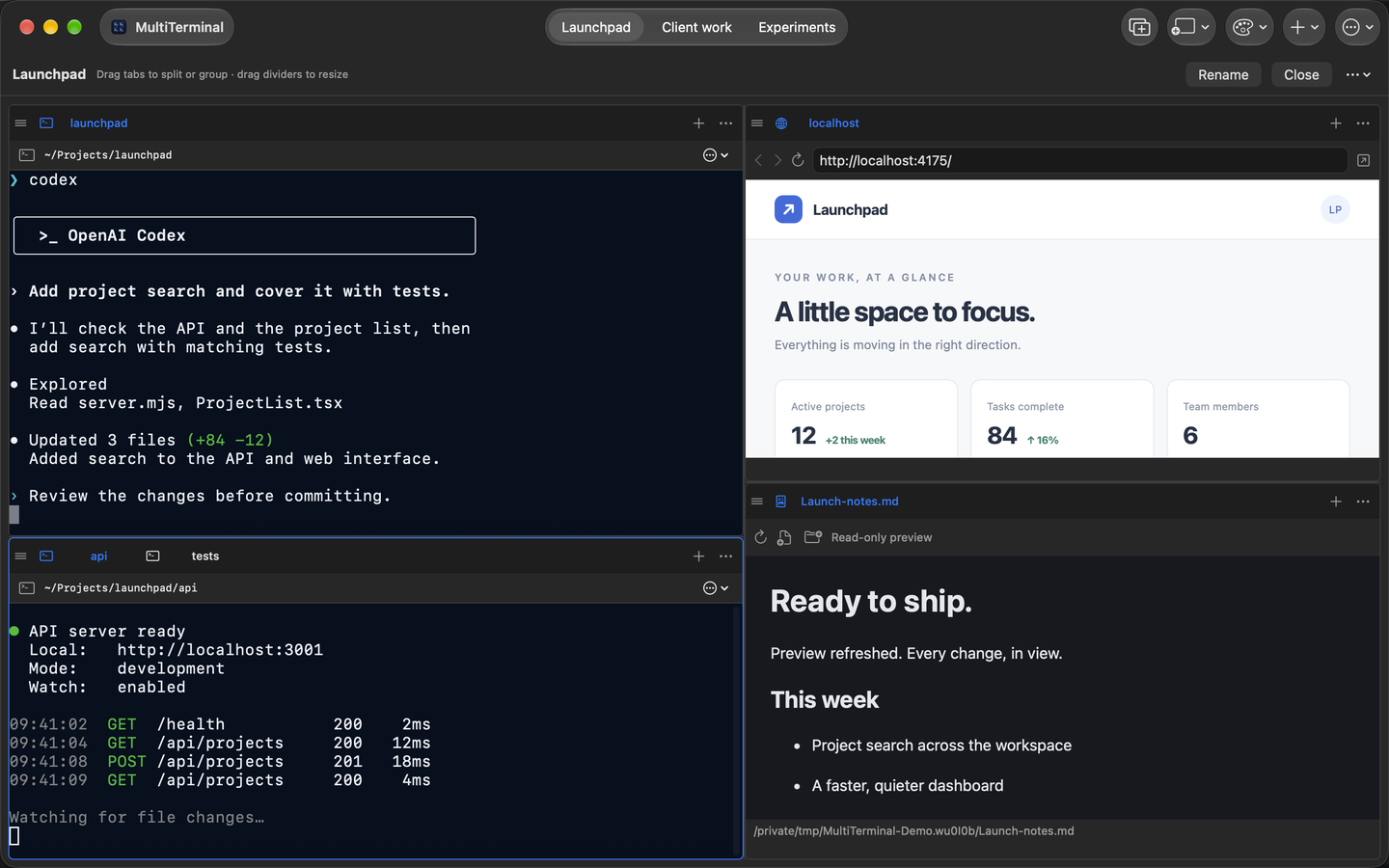
Agent terminal
Run your preferred AI coding CLI and keep its progress, questions, and proposed changes visible.
 MultiTerminal
AI coding workflows
Run your coding agent beside the development server, tests, and running app. Follow a changing Markdown plan or release note without leaving the workspace.
The problem
While an AI coding tool edits a feature, another terminal may be serving the app, a watcher may be running tests, and a browser may be showing the result. Separate windows make it easy to miss a question, an error, or a regression.
MultiTerminal gives each part of the loop a pane. You can watch the agent work, inspect runtime output, test the result in a real embedded browser, and follow a Markdown plan or release note as it refreshes.
Example layout
Run your preferred AI coding CLI and keep its progress, questions, and proposed changes visible.
Serve the app or API and watch requests, rebuilds, warnings, and failures as they happen.
Group a test watcher with another terminal so validation is close without consuming a permanent split.
Open the localhost app beside a Markdown preview that refreshes when the agent or editor changes it.
Workflow
Try this setup
This example uses a fictional Launchpad project and separately installed tools. Use the folders and scripts defined in your own project.
Set its starting folder to the project root. Run your installed agent CLI, such as Codex.
cd ~/Projects/launchpad
codexKeep the server visible and group a test watcher into a neighboring tab. These sample commands require matching package scripts.
npm run dev
npm run test:watch
Add a Browser pane for the address printed by your server. Add a File Preview pane for your Markdown plan or release notes. Review browser behavior, test output, and the agent’s proposed changes before committing.