Terminals, browsers, and previews
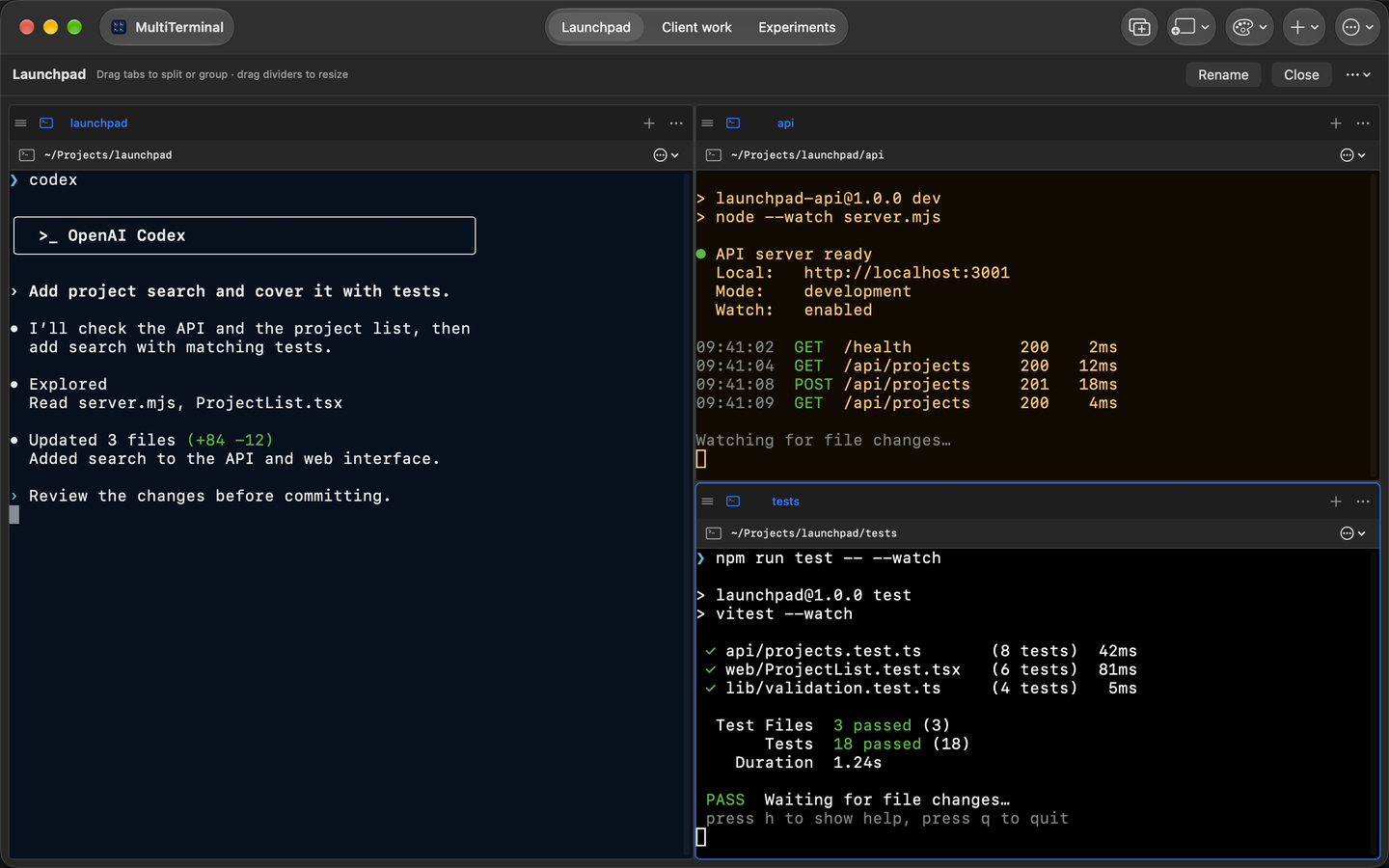
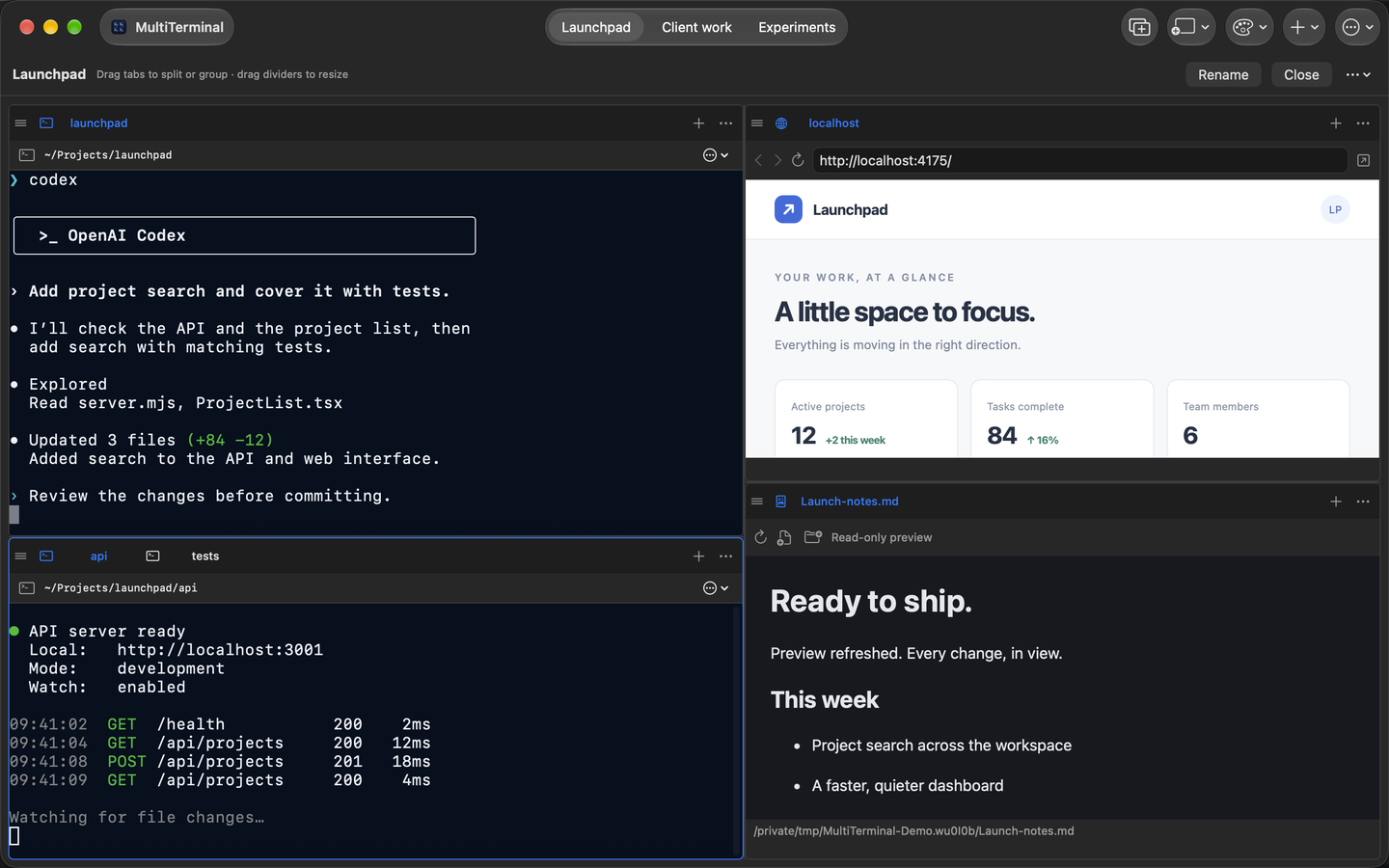
Run shells and command-line tools, open HTTP, HTTPS, or localhost pages in embedded browser panes, and follow images, PDFs, HTML, Markdown, text, or source files in live read-only previews.
 MultiTerminal
MultiTerminal features
Put terminals, a real browser, and live read-only file previews beside each other. Shape them into the layout your project needs, then return to that context later.
Core capabilities
Run shells and command-line tools, open HTTP, HTTPS, or localhost pages in embedded browser panes, and follow images, PDFs, HTML, Markdown, text, or source files in live read-only previews.
Drag panes to an edge to split, to the center to group, or within a tab strip to reorder. Resize dividers and move an entire group when the workflow changes.
Keep workspace names, pane types, files, URLs, nested split sizes, tab order, selected tabs, and starting folders. Reopening starts fresh shells in the saved locations.
The current macOS app uses native controls, local workspace settings, and separate browser profiles for each workspace. Choose Midnight, High Contrast, or Amber terminal themes. Windows and Linux versions are planned.
The useful details
Browser panes share cookies and logins inside a workspace while remaining isolated from other workspaces. New-window links become tabs in the same pane group, and each page can still open in your default browser.
File previews refresh after external edits without modifying the source. Terminal panes can start in different folders and follow the global theme or use their own override. Open workspaces keep active sessions alive while you switch tabs.
Workspace reference