Split and group panes
Put terminals, browsers, and previews side by side. Drag panes into nested splits or tab groups, then resize as your workflow changes.
 MultiTerminalYour development workspace
Terminals, browser, live previews
MultiTerminal brings terminals, an embedded browser, and live read-only file previews into one window. Keep your server, tests, and running app in view, then save the layout for next time.
Desktop app preview · Sample content
Interactive workspace
Try it in your browser. Switch workspaces, drag a pane, or resize a split.
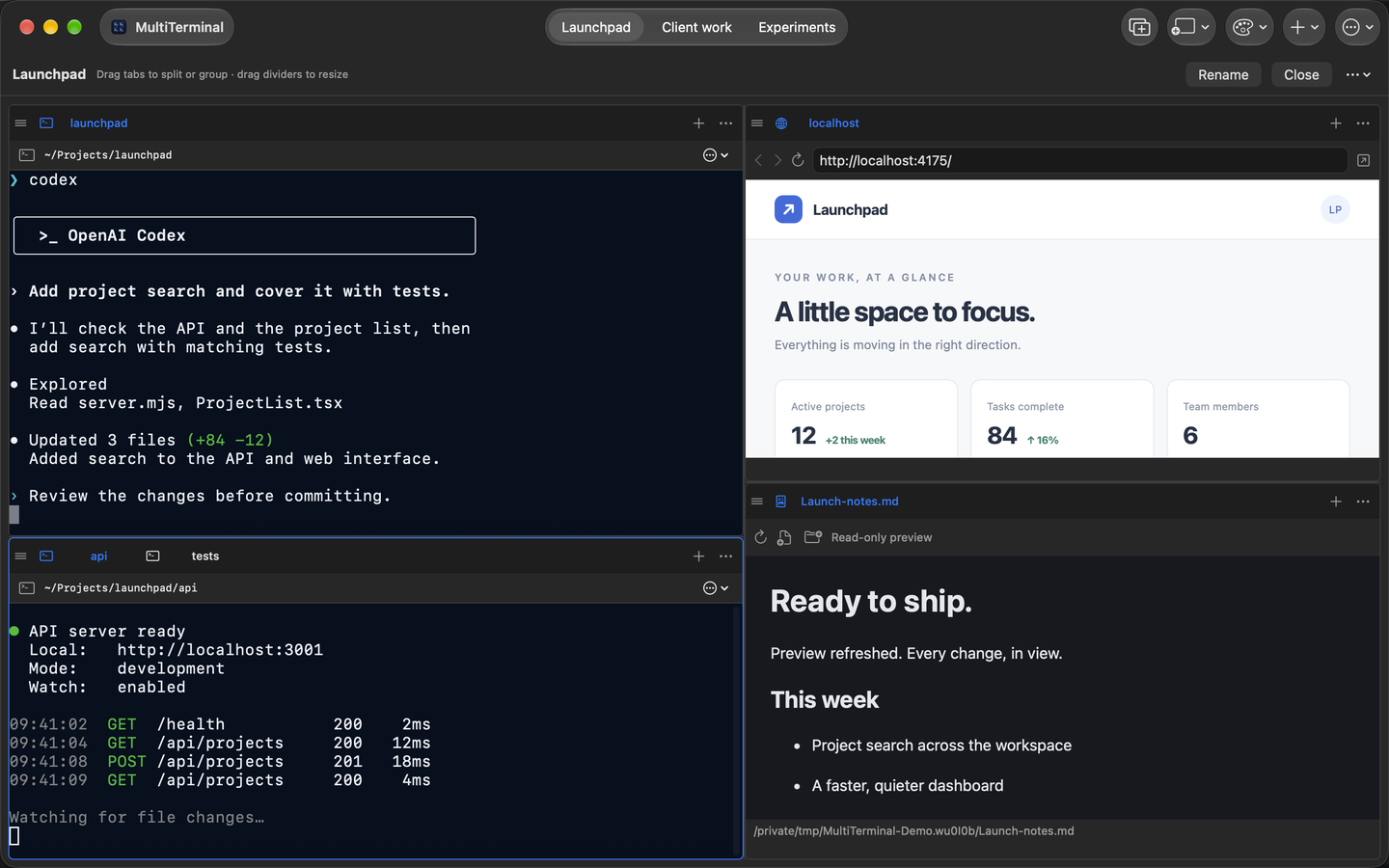
Enable JavaScript to explore the interactive workspace. You can also watch the native app video below.
Browser demo with sample content. Commands are simulated; your files aren’t accessed.
Workspace tools
Give each tool a pane. Keep related commands in tabs, and save the folders, files, URLs, and layout for each project.
Put terminals, browsers, and previews side by side. Drag panes into nested splits or tab groups, then resize as your workflow changes.
Watch your AI coding CLI, server output, tests, and running app together. Keep live read-only notes nearby as you prompt, review, and iterate.
Save each project's layout, starting folders, files, and URLs. Switch open workspaces, or reopen them later with fresh terminal sessions.
Example workflows
Keep an agent CLI visible beside your server, tests, running app, and the files it is changing so review stays part of the loop.
Read use caseFollow frontend and backend processes, test output, localhost behavior, and project notes without rebuilding a window layout every time.
Read use caseGive each project a saved workspace and switch tasks with the relevant folders, URLs, files, and pane arrangement already defined.
Read use caseA silent demo of the actual app: add a terminal, a browser, and a Markdown preview; drag panes into splits and tab groups, switch tabs, resize the layout, and watch a file preview refresh. Terminal output and the Launchpad project are illustrative.
The current app runs on macOS 14 or later. Windows and Linux versions are planned; join the release notification list to hear when your version is available.
Pane types, split sizes, tab groups, starting folders, selected files, browser URLs, and themes are saved locally. Reopening starts fresh shells; running commands and terminal output are not restored.
Yes. Terminal sessions in open workspaces stay active while you switch. Closing a pane or workspace, or quitting the app, stops its sessions. Tools can create detached jobs with a separate lifetime.
Preview images, PDFs, rendered HTML and Markdown, text, and source files. Additional formats use macOS Quick Look in the current app. Previews refresh after external edits and do not modify the source file.
Yes. Browser panes share cookies and logins within a workspace, with separate profiles between workspaces. Closing a workspace retains its profile; deleting it removes the profile.
Yes. Official MultiTerminal binaries are free for personal and commercial use. MultiTerminal is proprietary software; source code is not publicly distributed.
No. Install and configure your preferred AI coding CLI separately. Its accounts, subscriptions, permissions, and usage costs still apply. MultiTerminal does not bundle an AI model or credits.
No. Use your editor for code and MultiTerminal for the terminals, browser pages, and live read-only file previews around it. They work side by side.
Keep your project together. Free to use, with no MultiTerminal account required.